







Subtitles
Add dynamic & Stylish subtitles to your video in multiple languages


Start adding generated B-Rolls to your video
Sign In to add B-rolls to your video
Upload your video to get started in seconds.
Upload VideoAutomatically add B-roll to your videos in minutes. Let our AI do the work, so you can focus on creating.
Drag and drop your video file directly into our secure platform, and let AI do the magic in seconds
Explore more features from ButterCut and join the waitlist
Join the waitlistAdd dynamic & Stylish subtitles to your video in multiple languages

Dub your videos to 30+ languages in your own voice using AI
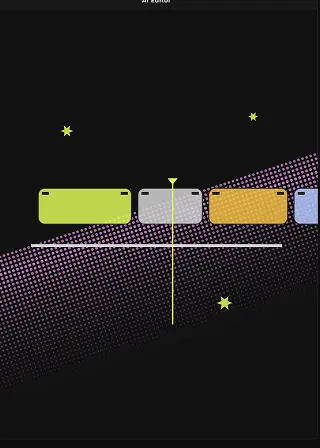
Edit videos like top 1% video editor using AI and minimal effort.
Subtitle, dub, and enrich your videos in minutes with AI - no editing skills required.
Start with ButterCut ✨
On ButterCut you can just simply upload your video, choose the language in which you want subtitles to be added and ButterCut just does the rest, you can select the style for aesthetics before exporting and get done with the whole process in seconds. Or you can just spend hours on tools like capcut, VN or premiere pro and get the same results.
We generate subtitles using AI models which boast ~99.8% accuracy. But you can also edit the subtitle text manually on ButterCut in case you see any error.
A large % of viewers on platforms like Youtube shorts, instagram reels, TikTok and othe rsocial media platforms consume content on mute, adding subtitles grabs attention and help users follow along without audio. Even for users with audio on subtitles can make it easier for users to follow along and can open global reach if you subtitle in different language using ButterCut.
With ButterCut you can add subtitles in x+ languages including English, Hindi, Tamil, Telugu, Kannada,Malyalam, Bengali and Marathi. ButterCut allows capability to translate any of your videos in these languages and add captions to help you achieve wider reach.
On the styling screen you can simply tap on edit subtitles tab and edit any of the text in generated subtitle, once you are done with your changes click on confirm to save your changes. In case you are translating your subtitles in some other language, you can first check and edit the transcription of your video in order to increase accuracy of your translated subtitles.
Transcription is the exact word by word text of what you are speaking in the video in your original language. In case you want to translate your subtitle in some other language, we first show you transcription in original language to make sure once we translate you get accurate translated subtitles. In case you wish to obtain subtitles in your original language without translation, transcription text and subtitle text are essentially the same.